Shopping Lists and Tools
3 answersShopping lists, bin labels and product details that make reordering faster.
If an item has a box quantity it can be found under "Attributes" on the product page: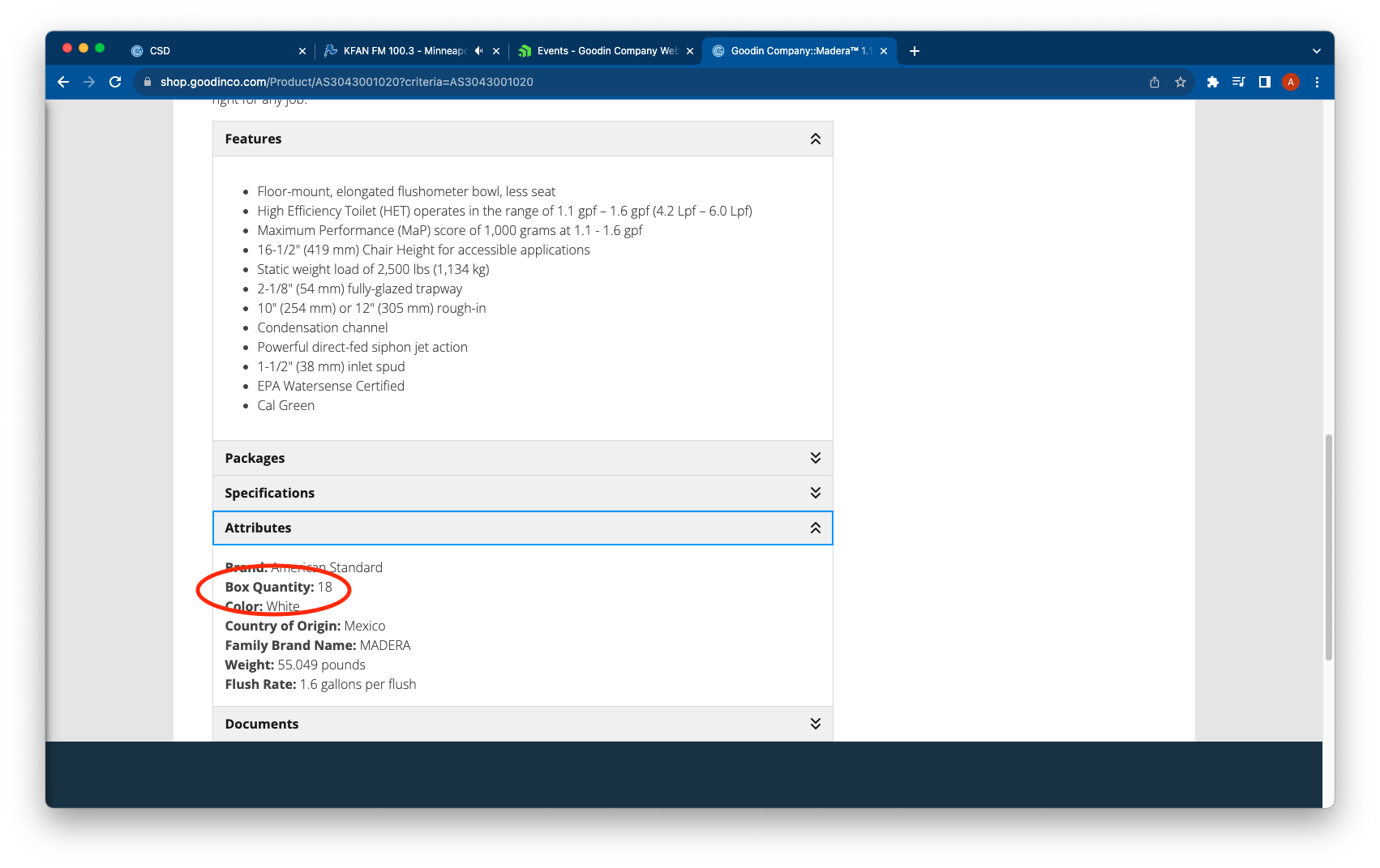
Or it is filterable on the right of the page with multiple products 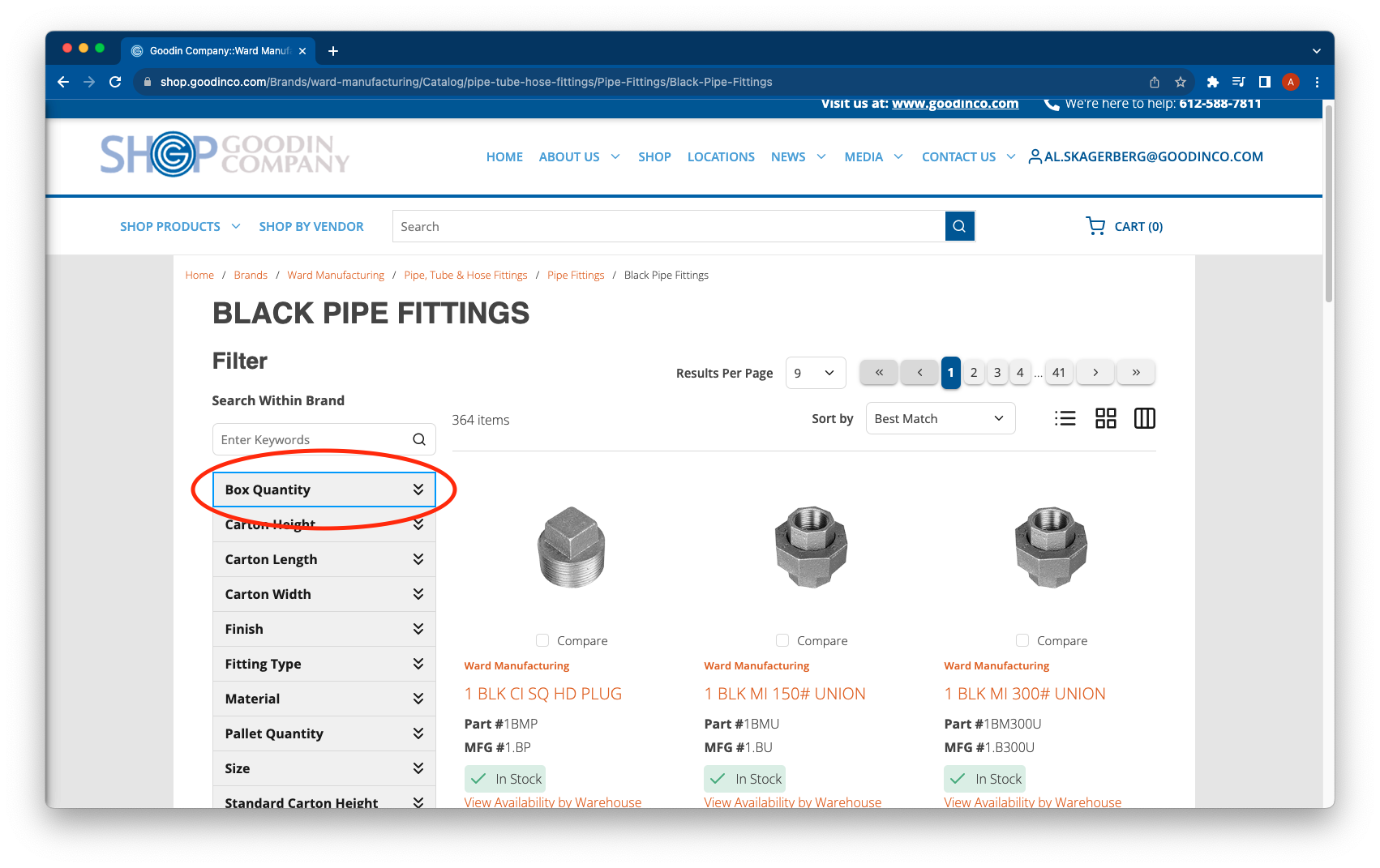
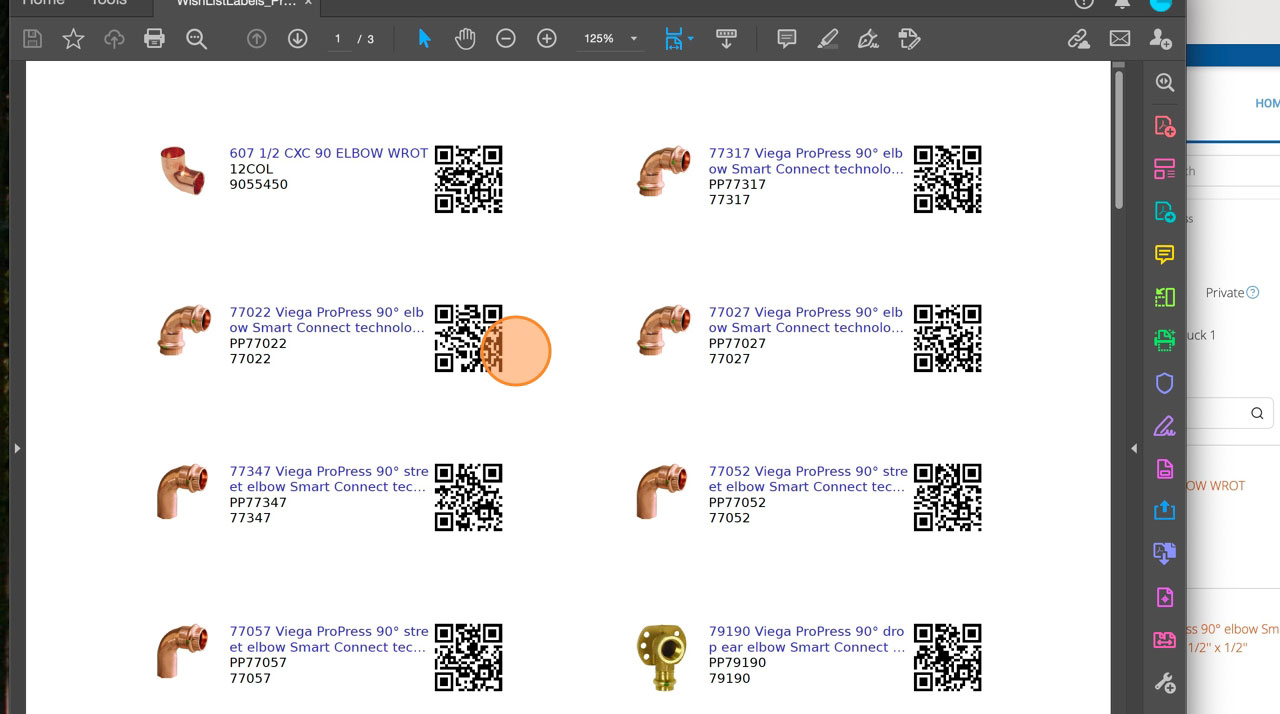
Guide to print QR/barcode labels for a wide variety of uses. Warehouse and Truck inventory. Print on paper and create a book for end users to scan.
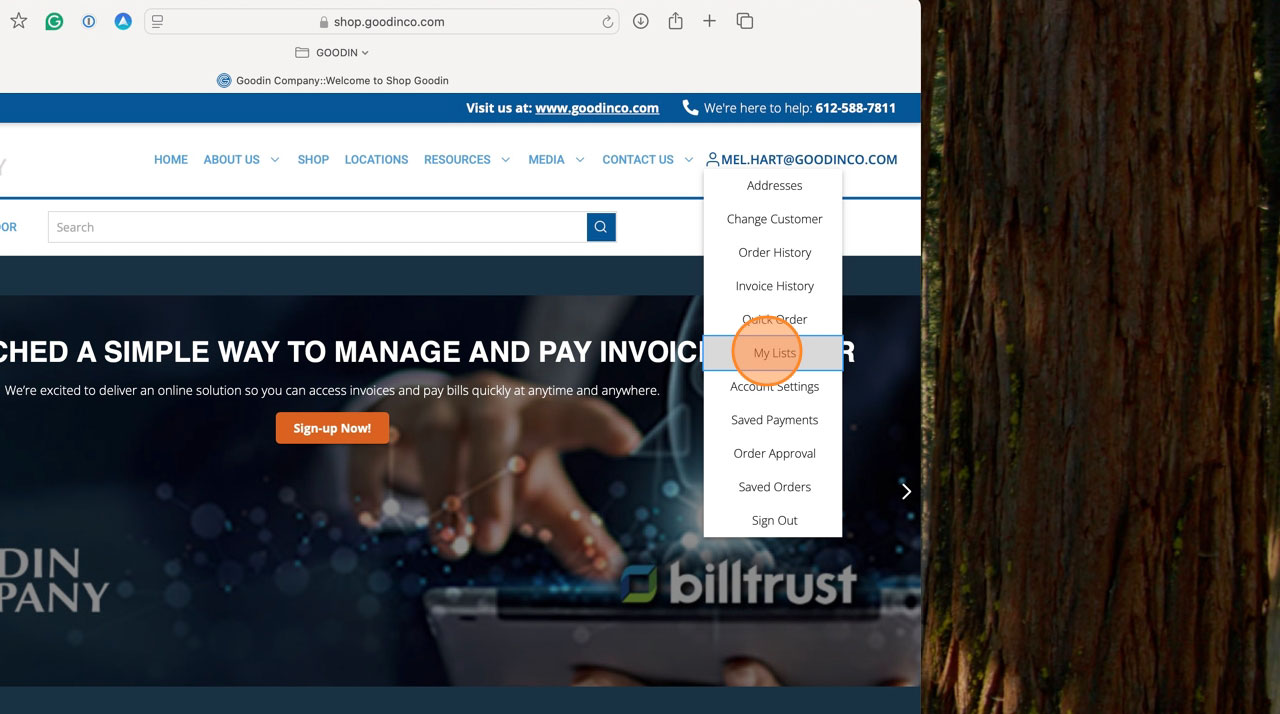
1. Click "My Lists"
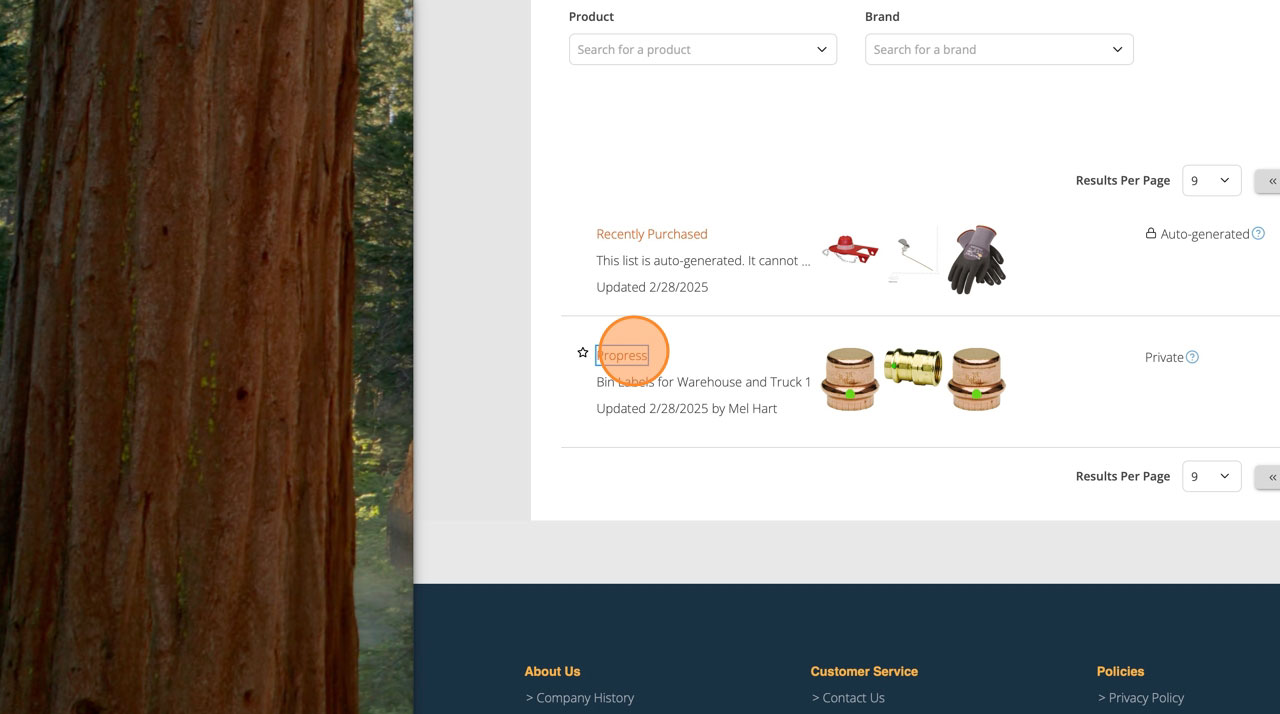
2. Click on your "List" you want to create barcode/QR labels or book.
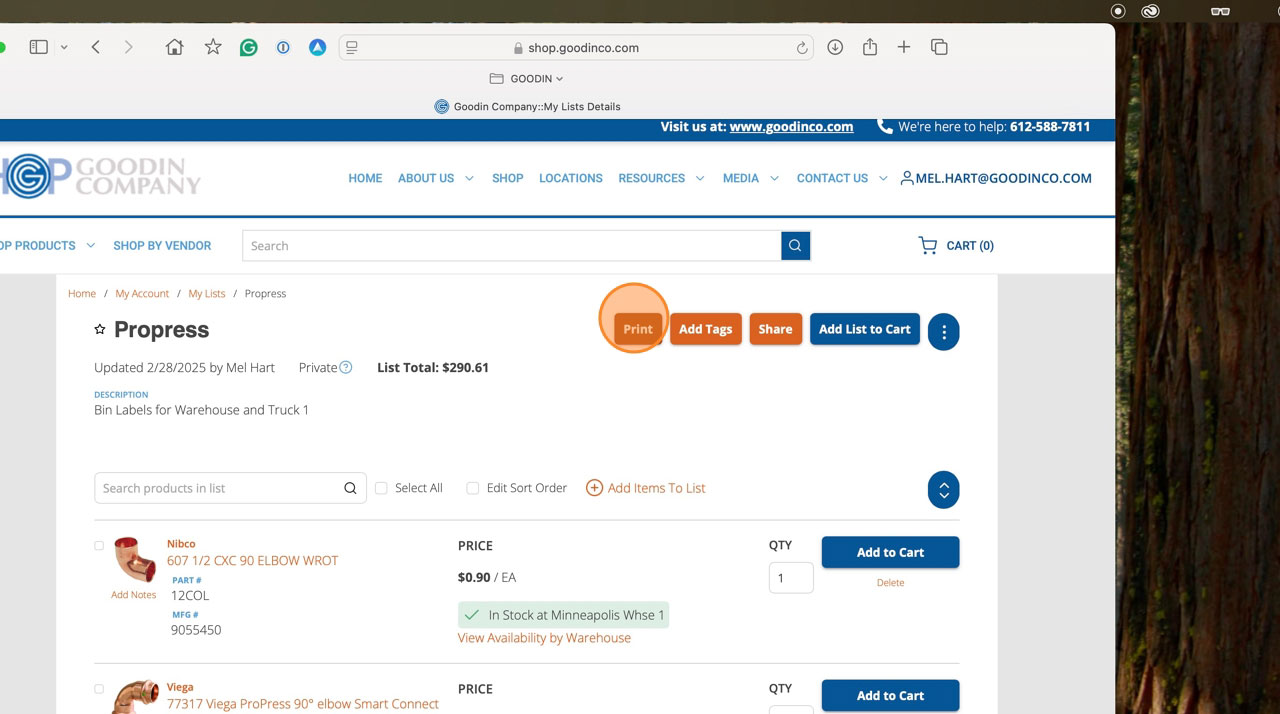
3. Click "Print"
4. Click "Layout" and choose between your layout you wish to use. 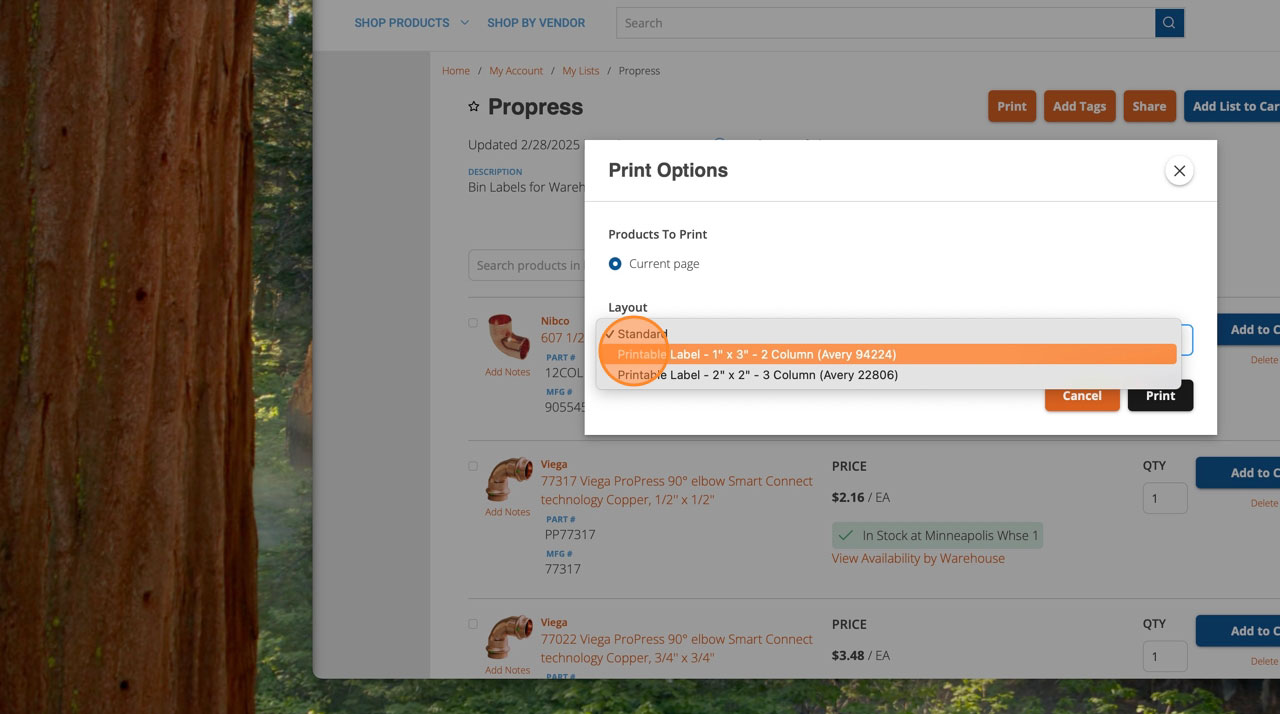
5. Click "URL"
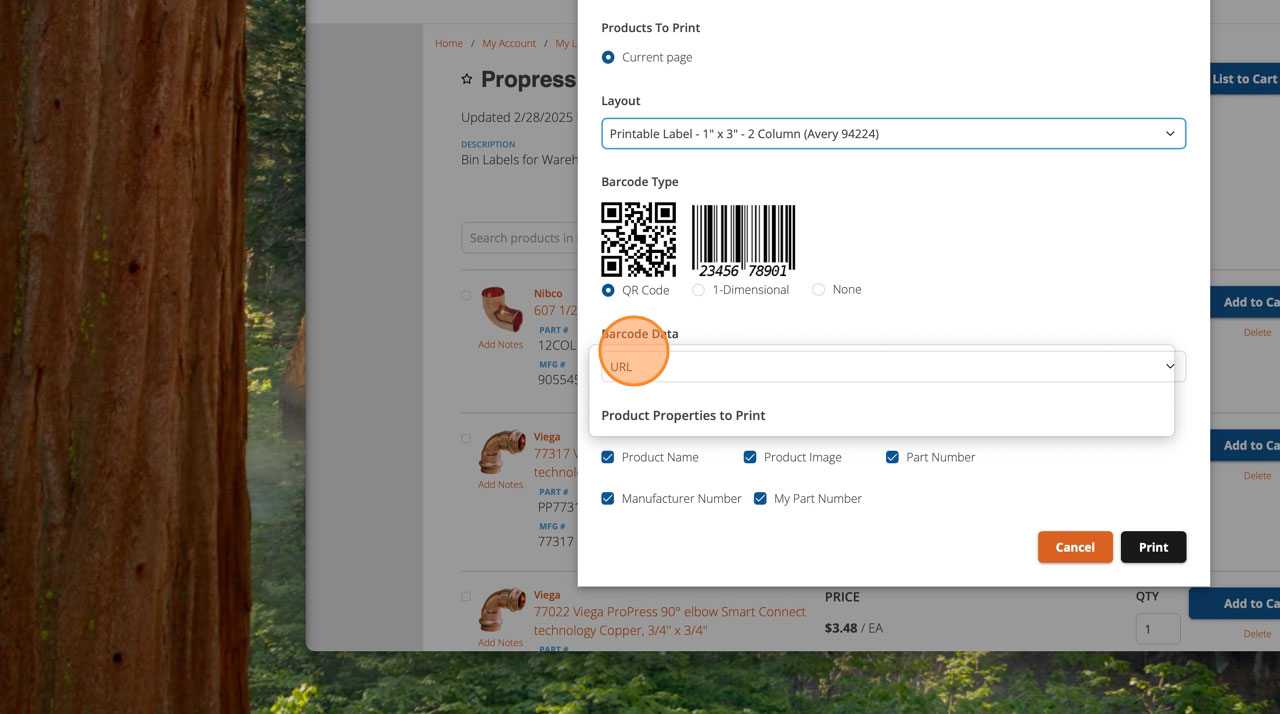
6. Click "Barcode Data". We recommend "Property - Part Number". If we have entered in our system your part numbers, You can choose "My Part Number".
7. Select the different Product Properties to Print. Click "Print"
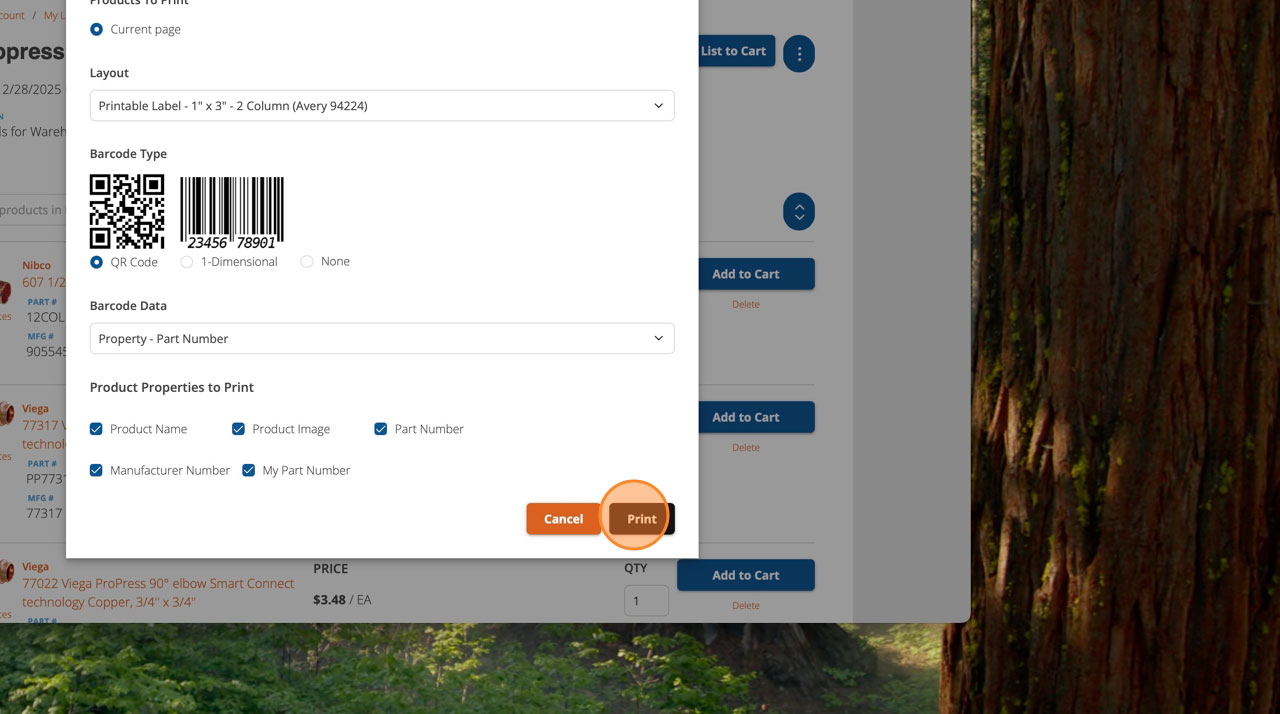
8. "Your request has been received. Your list will be sent to the email address on your account."
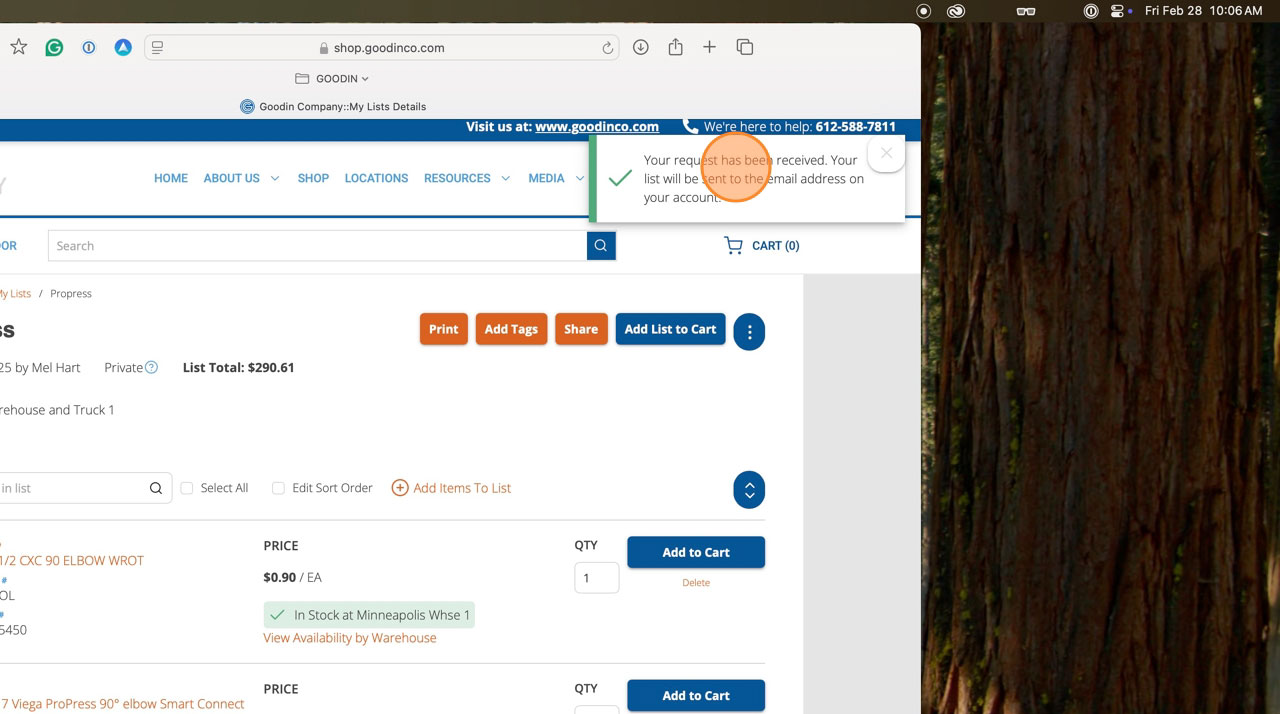
9. You receive a pdf file of your bin labels in your email. Print on labels or create a booklet for easy scan with Goodin's New Mobile App